WordPress Website Slow After an Update? How to Find the Cause
You finish updating WordPress, open your website, and wait. The homepage takes longer to appear. A menu hesitates. The contact page seems stuck. Yesterday everything felt normal, and now a routine update has become another problem on your business to-do list.
If your WordPress website is slow after an update, start by identifying what changed and where the delay happens. The update may be involved, but timing alone does not prove the cause. Hosting activity, an empty cache, a third-party service, or a browser issue can produce similar symptoms.
The safest approach is to record the problem, protect your current data, and test one likely cause at a time. Avoid installing several speed plugins or undoing every update at once. Those changes can hide useful evidence and introduce new problems.
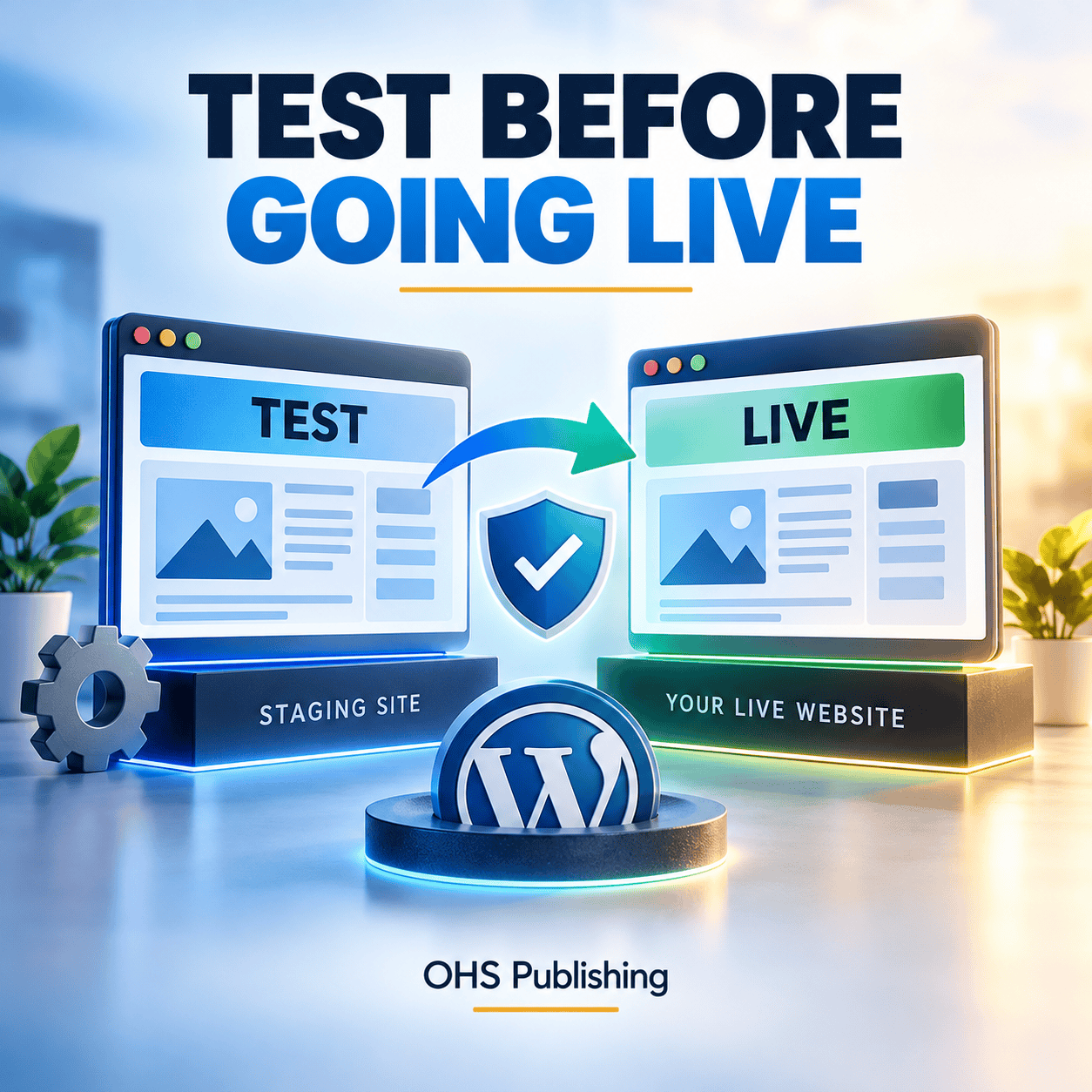
For the next planned update, a WordPress staging site can help you test changes before they reach customers instead of troubleshooting them after the fact.
Why a WordPress Website Can Become Slow After an Update
Your website relies on several pieces of software working together: WordPress core, the theme, plugins, hosting software, and connected services. An update can change how one piece loads files, requests information, or interacts with another.
For example, a booking plugin might start loading an additional script on every page. An optimization setting might delay a file that a newly updated menu needs immediately. A theme update might require a compatible version of its page builder or companion plugin.
Some delays are temporary, such as rebuilding cached pages or running a documented background migration. Others persist until a conflict or configuration issue is corrected. Do not assume that every slowdown will clear itself, especially if customers cannot submit forms or complete purchases.
This article focuses on diagnosing a sudden change. For the broader risks of neglected upkeep, read what happens without WordPress maintenance.
1. Confirm What Became Slow and When
Write down when you first noticed the issue, which updates ran, and whether anything else changed that day. Include new tracking code, a redesigned section, a large photo upload, or a hosting change. Automatic updates may have happened while you were away from the dashboard.
Check several representative pages: your homepage, a main service page, a contact page, and a product or booking page if applicable. Compare the public website with the WordPress dashboard. Slow editing and slow customer-facing pages may have different causes.
- Only one page is slow: Look for a feature, image, form, or embed unique to that page.
- Every public page is slow: Investigate shared scripts, caching, and server response.
- Only logged-in visits are slow: Compare caching behavior and account-specific features.
- Only one device is affected: Check another browser and network before changing the site.
Use a private browser window for a logged-out comparison. Keep the tested URL and device consistent. If a phone on cellular data works normally while your laptop struggles on office Wi-Fi, the website itself may not explain the whole problem.
Save screenshots or existing monitoring results when available. Without a previous measurement, describe the symptom honestly instead of declaring that an update doubled the loading time.
2. Protect the Site Before Troubleshooting
Confirm that you have a usable backup of both the website files and database. Know its date, where it is stored, and how restoration works. A backup of images alone will not restore plugin settings, customer records, or WordPress content.
Preserve the current site before making repairs, even if it is slow. Orders, inquiries, appointments, and edits created since the previous backup may need to be retained. Ask your host or developer to verify the restore process if you have never used it.
Make a short change log. Record each setting you adjust, its original value, the test result, and whether you reverted it. If you change five things before checking the site, you lose the ability to tell which change helped.
3. Check Hosting, Resources, and Server Response
A website can look like it has a design problem when the server is taking too long to begin responding. Ask your hosting provider to examine the affected time window, rather than simply asking whether the server is online.
Useful questions include:
- Were processing capacity, memory, storage, or simultaneous request limits reached?
- Did a backup, security scan, import, or other background job overlap with the slowdown?
- Are error logs showing repeated failures linked to a plugin, theme, or external connection?
- Did the PHP version, caching configuration, or another hosting setting change?
- Is the delay happening before WordPress sends the page, or while the browser loads its contents?
Share specific URLs and approximate times. A report such as “the contact page paused at 9:15 a.m., while the homepage loaded normally” is easier to investigate than “the website is bad today.”
More hosting capacity can help when resources are genuinely insufficient. It will not necessarily correct a broken script or a plugin repeatedly waiting for an unavailable service. Ask what evidence supports an upgrade before committing to one.
If hosting resources, backups, or support responsibilities are unclear, use our small-business website hosting checklist before changing plans.
4. Troubleshoot Plugin Conflicts Safely
Start with plugins that changed around the time the slowdown began. Read their update notes and support notices for compatibility requirements or known issues. Note the current version and the last version that worked, if you have a reliable record.
Use a staging copy to test whether disabling a suspected plugin changes the symptom. Check the same page after each change, then restore the original configuration when a test does not help. A plugin can also conflict with another component, so a single successful test is a lead to investigate.
Avoid bulk-deactivating plugins on a working production website. Removing a form, booking tool, payment integration, or page-builder dependency can disrupt customers immediately. Deactivation also differs from deletion; deleting a plugin may remove settings or data.
WordPress’s official lesson on plugin and theme conflicts explains methodical testing and session-specific troubleshooting. A developer can determine whether that approach suits your site. Session-only testing is useful, but it does not reproduce every anonymous visitor’s cache or every background process.
If you cannot access the dashboard, contact the host or developer. Renaming plugin folders or editing database records without understanding dependencies can create a second recovery task.
5. Check Theme and WPBakery Compatibility
When a website uses WPBakery, the page builder, theme, theme companion plugin, and any builder add-ons may all contribute to the page. Updating one component does not prove the entire combination is compatible.
Compare a simple page with a page containing sliders, galleries, animated rows, or custom builder elements. If the simple page works normally, concentrate on what the heavier page adds. Check whether the editor is slow, the finished page is slow, or both.
If WPBakery came bundled with your theme, confirm the supported update path with the theme provider. WPBakery’s guidance for theme-bundled updates explains how that differs from a direct license. Use legitimate update sources and check release notes before changing versions.
Do not rebuild pages or replace the theme merely to test a suspicion. A developer can assess the existing WordPress website structure and isolate a specific compatibility problem first.
6. Review Caching and Optimization Settings
Caching stores reusable responses so the website does not need to rebuild everything for every visit. After an update, an old cached file may no longer match the new code. Conversely, recently cleared caches may take time to fill again.
Identify which layers are active: browser cache, a WordPress cache plugin, hosting cache, and possibly a content delivery network. Follow the relevant provider’s procedure for clearing stale files. Repeatedly purging every cache can increase server work and make comparisons harder.
Next, review options that combine, shrink, delay, or defer CSS and JavaScript. These can improve loading when configured correctly, but a changed dependency can expose a conflict. On staging, test one setting at a time and check the affected feature.
For example, a delayed script might prevent a quote form from initializing until the visitor interacts with the page. The page may appear fast while its most important feature feels broken. Judge the complete customer experience, not just the initial visual load.
Do not add another optimization plugin on top of an existing setup without checking overlapping functions. Also confirm that carts, checkout, account pages, and other personalized content follow the host’s and application’s caching requirements.
7. Inspect Images, Scripts, Fonts, and Connected Tools
The update may coincide with content changes. A large hero photograph, autoplay video, new font family, chat widget, review feed, map, or tracking integration can increase what visitors must download and process.
Look at the affected page as a customer. Does the main content appear quickly but a widget keep spinning? Does text remain invisible while a font loads? Does the page move around as images arrive? Each symptom points to a different investigation.
Ask your developer to inspect the browser’s network requests and performance recording. They can identify long waits, failed files, repeated requests, and scripts that keep the browser busy. A warning in the console is a clue; it is not automatically the cause of the slowdown.
Test suspected third-party tools on staging where practical. Preserve required consent controls and business-critical integrations. If the problem involves custom forms or connected features, our web development services page explains the kinds of functionality OHS works with.
8. Use PageSpeed Insights Without Chasing One Score
PageSpeed Insights combines a simulated test with real-user data when enough is available. Google’s explanation of PageSpeed Insights helps distinguish those views.
The simulated Lighthouse test is useful for investigating the page now. Real-user data covers a trailing 28-day period, so it cannot instantly confirm a repair made this morning. A low-traffic page may have no field data, or the report may show data for the overall site instead.
Compare a few runs using the same URL and device setting. Mobile and desktop results represent different conditions, and individual test scores can vary. Look for a repeated problem rather than reacting to a single number.
Keep your own checks practical: can a visitor read the main content, open the menu, and use the page without long pauses? A better score is useful only when the site still performs its intended job.
9. Decide Whether to Repair or Restore
A full backup restoration may be appropriate when an update leaves the site unusable and there is a known-good recovery point. If the site still functions and the cause is narrow, a targeted repair may preserve more recent work.
Before restoring, identify what would be overwritten. Yesterday’s database may not contain today’s orders, leads, appointments, or account changes. Files and database versions may also need to stay compatible after a plugin migration.
Have the host or developer explain whether the proposed recovery replaces a plugin, restores files, restores the database, or replaces the entire site. These actions have different consequences. Preserve recent data and test the recovery on staging when possible.
Rolling back to an older version is not a permanent maintenance strategy, particularly if it reintroduces a security issue. Plan how to reach a supported, working configuration after the immediate disruption is resolved.
If you also see unfamiliar redirects, unexpected accounts, or security warnings, treat that as a separate investigation. Slowness alone does not prove an infection; our website malware cleanup and recovery support is relevant when there are signs of compromise.
10. Use Staging to Reduce Guesswork
A staging website is a separate copy used for testing changes. It lets you examine updates, plugin combinations, and theme behavior without making every experiment visible to customers.
Keep its software and configuration close enough to production for the test to be meaningful. Performance numbers may still differ because staging can have different resources, caching, traffic, or access restrictions.
Protect the copy with appropriate access controls and prevent indexing. Configure it so tests cannot send real customer emails, charge cards, or trigger live automations. A copied website can still contain working integrations and private customer information.
Move only the approved repair back to production. Do not overwrite the live database with an older staging database just because the staging page now looks correct.
11. Prevent the Same Problem Next Time
A repeatable update routine makes problems easier to detect and explain. Keep a current inventory of essential plugins and their purpose. Remove unnecessary components through a planned review, maintain legitimate licenses, and know who is responsible for updates and recovery.
- Confirm a current backup and a usable restore process.
- Review compatibility notes and test significant changes on staging.
- Record versions and update related components in a controlled sequence.
- Check key pages on desktop and mobile immediately afterward.
- Verify menus, forms, bookings, and checkout as applicable.
- Monitor the site after the change and keep the update record.
A form that displays correctly can still fail to deliver the inquiry. Include the full handoff in your checks; our guide to what should happen after a contact form submission explains that next part of the customer journey.
When to Contact a WordPress Developer
Get help promptly if customers cannot contact you, purchase, or book; if the dashboard becomes inaccessible; or if you cannot confirm a safe backup. Repeated timeouts and unexplained errors also deserve investigation.
Send your website address, affected pages, approximate start time, recent update details, and tests already tried. Include screenshots with private information removed. Arrange any account access through a secure process rather than putting passwords in an inquiry form.
The goal is a clear diagnosis and a repair you can verify. You should understand what caused the problem, what changed to correct it, and what still needs monitoring.
Frequently Asked Questions
Can a WordPress update temporarily slow down a website?
Yes. Cache rebuilding or documented background work can cause temporary delays. Confirm that the work is progressing, and investigate persistent slowness or broken customer functions rather than assuming the site will recover on its own.
Should I deactivate every plugin to fix a slow website?
Not on a live business website without a recovery plan. Test suspected plugins on staging or use an appropriate session-specific troubleshooting method with developer guidance. Bulk deactivation can interrupt forms, bookings, payments, and page layouts.
Will restoring a backup remove new orders or inquiries?
It can. Restoring an older database may overwrite records created after that backup. Preserve current data and confirm exactly which files and database tables will be restored before proceeding.
Why does PageSpeed still show old results after a fix?
Its real-user data reflects a trailing 28-day collection period when available. A new simulated test can help check the current page, but the historical view will take time to reflect the changed experience.
Get a Clear Next Step for Your WordPress Website
A slow website after an update needs a careful investigation, especially when it supports your calls, inquiries, and sales. Start with the evidence, protect recent data, and verify each change against the customer experience.
OHS Publishing helps Kansas City businesses with WordPress websites, development, and ongoing care. Share your website address and what changed so we can discuss the right scope and next steps.