WordPress Staging Site: How to Test Changes Before They Go Live
Your WordPress website needs an update. Maybe a plugin has a new version, your designer wants to improve the homepage, or a booking form needs to connect to another service. The change sounds small. But the website is already collecting inquiries and helping customers decide whether to contact you. What happens if the update breaks something?
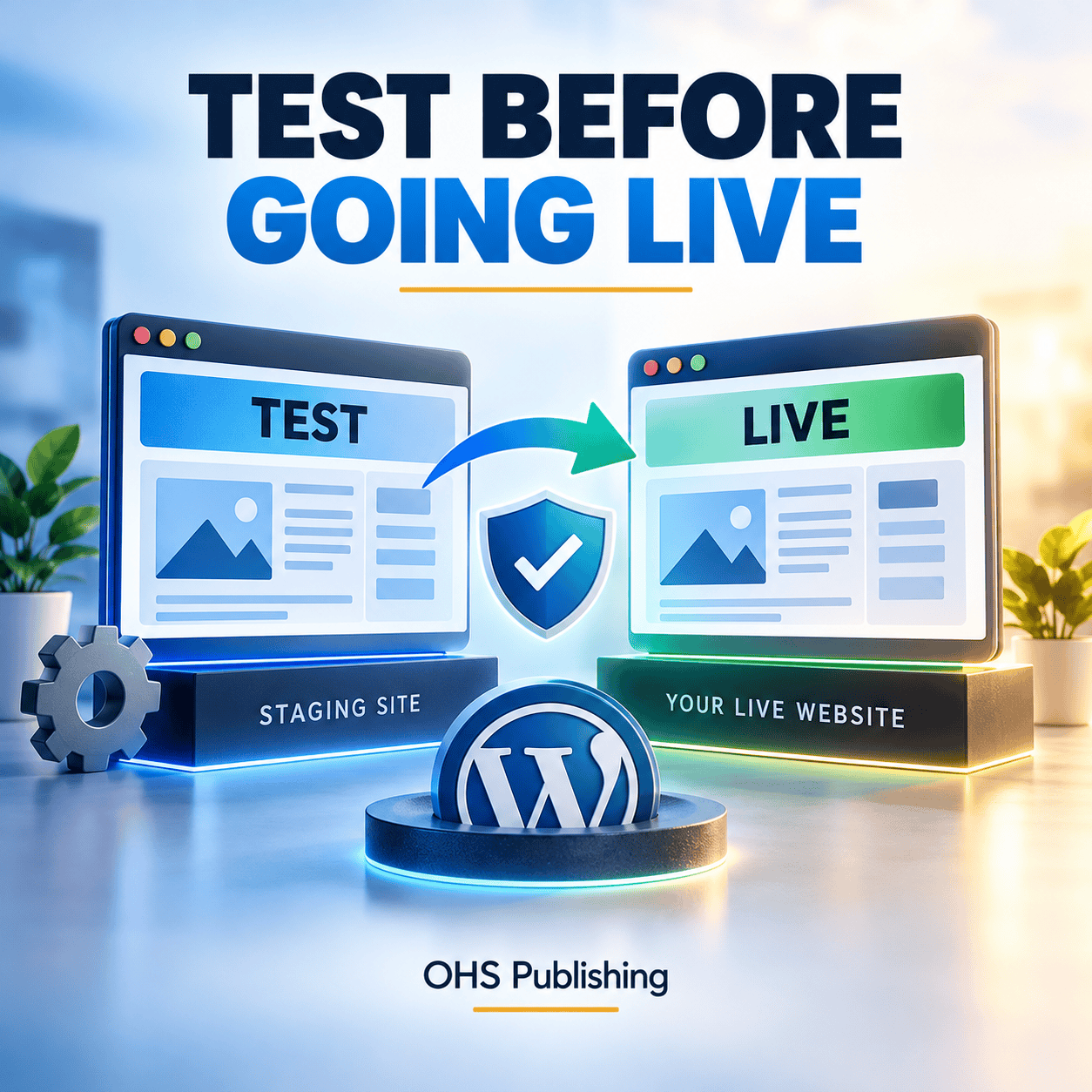
A WordPress staging site gives you a place to test changes before they reach the website customers use. Think of it as a rehearsal space: close enough to the real site to reveal problems, but separate enough that a failed test does not have to become a public incident.
Staging is not magic, and it is not a substitute for backups. The value comes from setting it up correctly, testing real customer tasks, and moving approved changes live without overwriting new leads, orders, or appointments.
What Is a WordPress Staging Site?
A staging site is a separate copy of your WordPress website used to preview and test changes. It may live on a private subdomain, inside a hosting control panel, or in a managed staging environment. Ideally, it reflects the same theme, plugins, content structure, and relevant settings as the live site.
The live site is often called production. That is the version customers see, search engines visit, and business operations depend on. Staging is where you can check a proposed change before deciding whether it belongs in production.
Imagine a contractor whose quote form sends inquiries to an office email and CRM. On staging, the contractor can test a new form layout without risking the public quote process. Testing must also confirm that test submissions are not sent as real leads to the sales team. WordPress's official testing guidance recommends testing normal workflows before updating production.
Staging, Backups, and Maintenance Do Different Jobs
Staging helps you discover trouble before release. A backup helps you recover data and files when something goes wrong. Maintenance keeps software, monitoring, and recovery from becoming an afterthought.
- Staging: test code, design changes, updates, and integrations separately.
- Backup: preserve recoverable copies of files and the database.
- Maintenance: manage updates, security, performance, forms, and routine checks.
A staging test can pass and a production problem can still occur because environments differ. Likewise, a backup can exist without ever being tested for restoration. Read what happens without WordPress maintenance for the broader risks. The WordPress update documentation recommends backing up before changes.
When Is Staging Worth the Extra Step?
Correcting a typo usually carries less risk than replacing a form plugin. Match the testing effort to the potential business impact. Major WordPress, theme, and plugin updates can change how scripts load, templates render, or integrations communicate. A single plugin may affect the entire site.
Staging is especially useful for redesigns, new menus, page-builder templates, booking changes, payment integrations, and major updates. A polished desktop hero is not enough if the mobile navigation overlaps the call button. If an update has already caused a slowdown, see how to diagnose a slow WordPress website after an update.
Businesses considering more extensive changes can review OHS Publishing's WordPress web design services. For customer-facing forms, also consider what should happen after a contact form submission. Test modes and dummy records are preferable to real payments or customer data.
Protect the Live Site Before Making a Test Copy
Ask the host or developer how the copy will be created, what data it includes, and whether it shares services with production. Confirm that a current backup includes the database and site files, and identify who can restore it. Restoring an older database can remove legitimate orders or leads created after the backup.
A staging copy may contain private records. Restrict access with authentication or hosting controls and remove or anonymize personal information where practical. A noindex setting alone does not prevent unauthorized access.
Disable or safely configure outgoing email, CRM automations, scheduled jobs, appointment reminders, and payment connections. A cloned website can otherwise send duplicate notifications or trigger real workflows. Verify that staging has appropriate database isolation before clicking a one-click cloning button.
Seven Checks to Run on a WordPress Staging Site
1. Follow your most important customer journeys
Open the homepage, service pages, location pages, and contact page. Click from the first page a visitor might see through to the quote or booking form. For a shop, follow a product through cart and test checkout.
2. Test on a real phone
Look for menus that will not open, clipped text, overlapping buttons, oversized images, and forms that require sideways scrolling. A desktop preview alone does not reveal every mobile problem.
3. Submit forms from start to finish
Use safe test details. Verify validation, confirmation screens, email delivery, spam protection, and routing to the intended test inbox or integration. A thank-you screen does not prove that an inquiry reached the correct person.
4. Compare performance before and after
Use the same representative pages and similar testing conditions. Watch for unexpected scripts, layout shifts, errors, and sluggish interactions. A single speed score is not a substitute for checking the customer experience.
5. Check basic accessibility
Navigate with a keyboard, look for visible focus indicators, check form labels and errors, and confirm text remains readable at increased zoom. Automated checks help but cannot replace practical interaction testing.
6. Review search and tracking settings
Staging should stay private. Production should retain its correct canonical URLs, redirects, analytics, and indexability. A noindex rule meant for staging must not accidentally reach the public site.
7. Check scheduled and connected services
Review notifications, bookings, scheduled publishing, inventory synchronization, and other external jobs. Test only with controlled data. Record each result as pass, fail, or needs review, with a screenshot when something fails.
Moving Changes Live Without Losing New Business
A staging copy reflects production at a particular moment. The public site keeps receiving orders, leads, appointments, and content updates while you test. Copying the entire staging database back to production can overwrite that newer information.
Ask the developer which files, templates, settings, and database records actually need to move. Some hosts offer selective deployment; others require manual recreation of certain edits. Never assume a one-click push protects every kind of live data.
Schedule the change for a quieter period where possible. Make a fresh production backup immediately beforehand, document the change, and identify who can reverse it. After deployment, test public forms, mobile navigation, integrations, caching, and indexability again. For larger projects, use the website launch checklist.
Common Mistakes to Avoid
- Testing a months-old staging copy that no longer matches production.
- Leaving staging public with copied customer information.
- Sending test leads, reminders, or payments into live systems.
- Checking only the homepage instead of customer actions.
- Overwriting the live database without protecting recent activity.
- Skipping the final production check after deployment.
Decide who creates the copy, who tests it, who approves changes, and who deploys them. A brief change record with dates, test results, and unresolved issues is more useful than an informal assurance that everything looks fine.
What If Your Hosting Plan Has No Staging Feature?
Ask your provider about available staging tools and their limitations. A developer may be able to build a protected test environment elsewhere, but that requires separate credentials, safe integrations, and a deliberate deployment plan. It is not automatically cheaper or safer than managed staging.
For low-risk changes on a simple site, reduce risk with verified backups, small changes, and immediate post-change checks. Do not experiment with checkout, security, or critical integrations directly on production just because staging is inconvenient.
Questions to Ask Your Website Provider
- Where is the test copy, and who can access it?
- How recently was it copied from the live site?
- Are email, CRM, booking, and payment actions isolated?
- Which customer journeys and mobile views will be tested?
- Will deployment copy files, database changes, or both?
- How are new leads, orders, and appointments protected?
- Who approves the change and verifies the live site afterward?
- What is the backup and rollback plan?
Ask for clear answers rather than a guarantee that nothing can go wrong. OHS Publishing's website maintenance plan
Test the Tasks That Matter to Your Kind of Business
There is no single staging checklist that fits every website. A contractor's website, a professional practice, and an online store can all use WordPress, but their most important customer journeys are different. Build the test around what visitors need to accomplish, not merely the list of updated plugins.
Home service companies
Check the estimate request from a service page, a location page, and the mobile menu. Confirm the phone link dials the correct number and that project photos do not cover calls to action. If the form asks for a service address, test its validation with fictional details. Confirm the notification reaches a safe test inbox and that the staff would know which service was requested.
Professional practices and appointment-based businesses
Test the route from the service explanation to the appointment or inquiry step. Confirm hours, locations, provider information, and directions remain accurate. If the site integrates with scheduling, use its sandbox or approved test process rather than creating real appointments. Do not copy sensitive records into an unsecured test environment.
Retailers and online shops
Test product variations, search, filtering, carts, shipping calculations, discounts, and the supported payment test mode. Inventory and order databases are especially sensitive to a full staging-to-live overwrite. Agree on the deployment method before changing checkout, products, or customer accounts.
A useful staging report names the tested action and its outcome. “Mobile contact form submits and reaches test inbox” is more useful than “site looks good.” That specificity also makes future maintenance easier because you know what must be retested.
What to Do When a Staging Test Fails
A failed test is useful information, not a reason to rush the change live. Record the page, device, browser, action taken, expected result, and actual result. If possible, capture a screenshot or short recording. Compare the failing behavior with production to determine whether the issue existed before the proposed change.
Change one likely cause at a time. Reversing several plugin settings simultaneously may hide the cause and create new problems. If the test involves a plugin update, verify its compatibility requirements and related software versions. If it involves a redesign, review the affected template and responsive layout before changing unrelated pages.
Decide whether the failure blocks deployment. A broken checkout, lost form submission, or inaccessible mobile menu should stop a release. A minor decorative inconsistency might be scheduled for correction, but it should still be documented. The decision belongs to the people responsible for the website and the business process it supports.
How Often Should You Refresh a Staging Site?
Refresh timing depends on how quickly production changes. A brochure-style website with occasional edits may need a fresh copy before a planned update cycle. A store with daily orders and inventory changes may require a more careful synchronization strategy that does not expose or overwrite customer data.
Before refreshing, save unfinished work on staging. A fresh clone can replace changes that have not yet been deployed. Review test accounts, private data, and integrations after every refresh rather than assuming old safety settings survived. Keep the test environment current enough to represent production, but do not let it become a second uncontrolled website with its own business activity.
The practical rule is simple: test on a copy that represents the current website, then deploy only approved changes with a plan for protecting everything that happened on the live site in the meantime.
Frequently Asked Questions
Is a staging site the same as a backup?
No. A backup is a recoverable copy of website files and data. A staging site is a separate working copy where you can test changes. A reliable maintenance plan needs both.
Will changes on a staging site appear on my live website?
Not automatically. Staging is normally isolated from production. Changes need a controlled deployment or manual recreation, and live content must be protected during that process.
Can customers find a staging website in Google?
A staging website should be protected from public access and search indexing. Use authentication or other access controls; a noindex instruction alone is not a security boundary.
Do small business websites really need staging?
Not every text correction needs a staging environment. It is especially useful for plugin or theme changes, major design work, integrations, checkout changes, and updates to important forms.
Make Testing Part of the Routine
A business website is not a one-time project. It changes as services, technology, and customer needs change. Staging gives you a safer place to make those improvements, provided you protect the data, test meaningful workflows, and deploy carefully. The goal is not to eliminate every possible problem. It is to reduce avoidable surprises on the website your customers actually use.
Need help reviewing a WordPress website or planning a safer update process? Tell OHS Publishing what is changing and which customer actions matter most. We can discuss the right next step for your site without assuming every business needs the same setup.