WordPress Website Hacked? What to Do First and How to Recover Safely
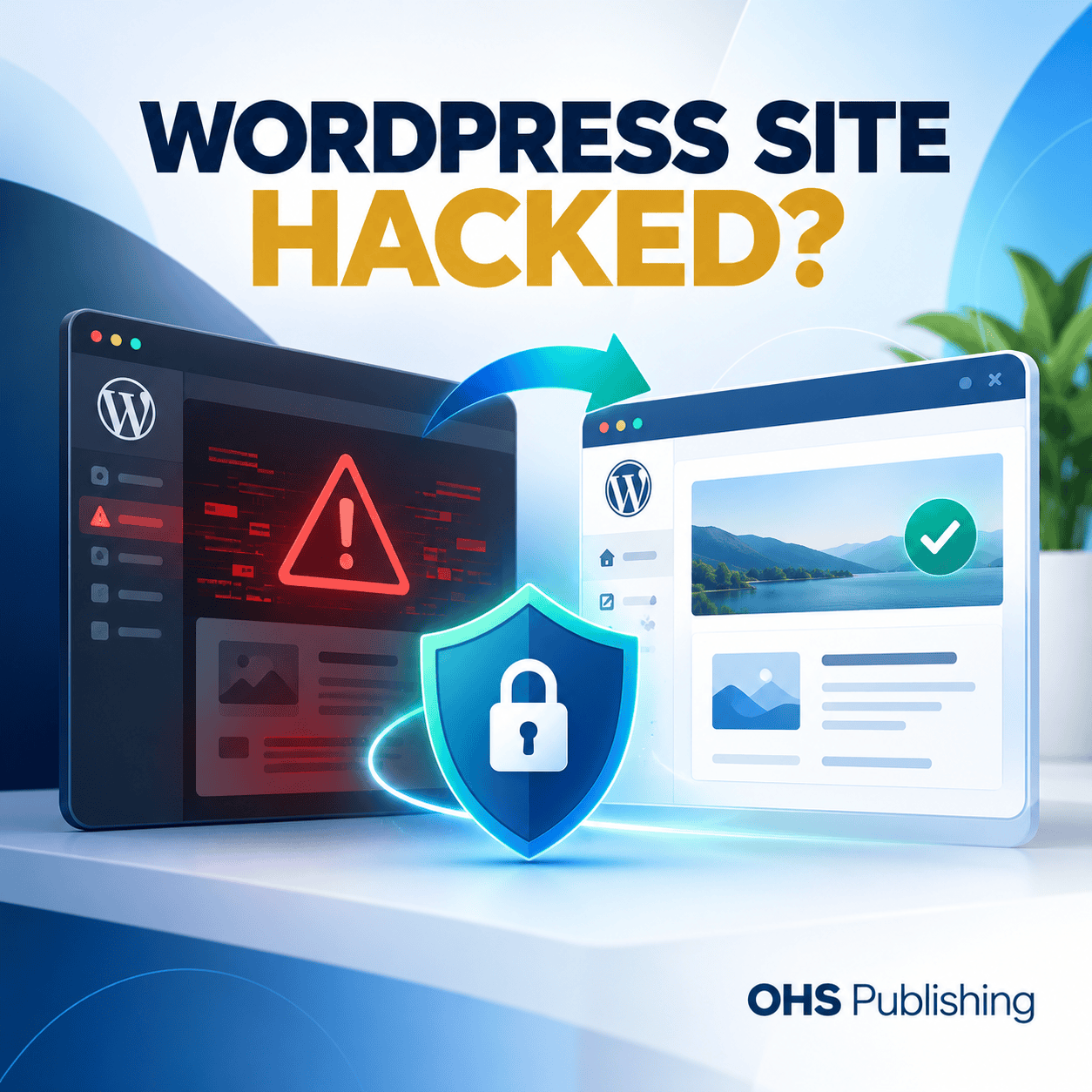
A hacked WordPress website is not just a technical problem. It can interrupt leads, expose visitors to redirects or warnings, damage trust, and leave the business unsure which parts of the site are safe to use. The worst time to improvise is after the problem has already started.
The first goal is not to make the homepage look normal again. It is to understand what happened, protect access, contain the damage, recover from a known-good state when possible, and close the path that allowed the compromise. A rushed cleanup that removes one suspicious file but leaves the underlying access problem can lead to the same site being infected again.
This guide is written for business owners who suspect their WordPress site has been hacked, redirected, blacklisted, altered, or otherwise compromised. It explains the practical first steps, what not to do, and when the situation has moved beyond a reasonable do-it-yourself repair.
First, Confirm That You Are Dealing With a Security Incident
Not every broken WordPress website has been hacked. A failed plugin update, expired SSL certificate, DNS problem, caching issue, PHP error, or hosting outage can make a site look alarming without involving an attacker.
There are, however, warning signs that deserve immediate attention. WordPress's official “My site was hacked” guidance lists indicators such as unauthorized users, malware warnings, host suspensions, visible changes, and search-engine warnings.
Common signs include:
- Visitors are redirected to unfamiliar websites.
- New administrator accounts appear that nobody created.
- Pages, links, ads, or popups appear without authorization.
- Google or a browser warns that the site may be dangerous or hacked.
- The hosting company disables the site or reports malicious files.
- Thousands of strange pages suddenly appear in search results.
- The business can no longer log in with known administrator credentials.
- Security software reports modified or unfamiliar executable files.
Document what you are seeing before changing anything. Save screenshots, affected URLs, alert emails, dates, and any messages from the host. Those details can help determine the scope later.
1. Preserve a Copy Before You Start Cleaning
When a site appears infected, the instinct is to delete anything suspicious immediately. Before doing that, preserve a backup or snapshot of the current environment when it is reasonably safe to do so.
That infected copy is not the version you want to put back online. It is a reference. It may help identify what changed, when files were modified, which accounts appeared, or whether a later cleanup missed something. WordPress's own post-hack guidance recommends taking another snapshot before cleanup when possible.
Also find out what clean backups already exist. Ask practical questions:
- What dates are available?
- Do the backups include both website files and the database?
- Are they stored separately from the live account?
- Was the site already compromised when the backup was created?
- Who can restore a backup if WordPress itself is inaccessible?
A backup is only useful if it predates the compromise and can actually be restored. The OHS article on what happens without WordPress maintenance explains why verified backups, updates, and monitoring belong together rather than being treated as separate chores.
2. Take Control of the Accounts Around the Website
A WordPress login is only one way into the website. Depending on the setup, an attacker may have gained access through the hosting account, an administrator password, SFTP credentials, an email account, a vulnerable plugin, or another connected service.
Use a trusted device and begin securing the accounts that control the site. Change compromised or potentially exposed passwords to strong, unique passwords. Pay attention to:
- WordPress administrator accounts
- Hosting and server control panels
- SFTP or file-transfer accounts
- Domain and DNS management
- Business email accounts used for password resets
- Database credentials when appropriate to the recovery plan
- Connected services that can modify the site or receive sensitive data
Review WordPress users and remove or disable accounts that should not exist. Do the same for old contractors, former employees, unused administrator accounts, and integrations that no longer need access.
If two-factor authentication is available for administrator, hosting, domain, and email accounts, enable it as part of the recovery. Strong credentials are not a substitute for fixing vulnerable software, but compromised credentials can allow reinfection even after the visible malware is removed.
3. Contain the Problem When Visitors Could Be at Risk
If the website is actively redirecting visitors, distributing malware, showing phishing content, or exposing sensitive information, keeping it fully accessible while you troubleshoot may create more harm.
Work with the host or developer to choose the safest containment approach. That may mean temporarily restricting public access, replacing the site with a simple maintenance response, isolating the affected account, or blocking a malicious path while the investigation continues.
Do not blindly delete the entire site before you know what backups and records exist. At the same time, do not leave an obviously malicious site online just because the homepage still works for you. Some compromises only affect certain devices, search referrals, logged-out visitors, or specific URLs.
4. Find the Scope, Not Just the Most Visible Symptom
A redirect script may be the symptom rather than the entry point. The same is true of a strange administrator account or one modified PHP file. A proper cleanup looks for the broader compromise.
Review the site for:
- Unknown administrator or editor accounts
- Recently modified core, theme, and plugin files
- Plugins or themes that were installed from untrusted sources
- Unused or abandoned plugins and themes
- Unexpected scheduled tasks or scripts
- Injected code in theme files, configuration files, or the database
- Spam pages, hidden links, or unauthorized posts
- Changes to forms, analytics, payment settings, or email routing
Security scanning can help identify suspicious changes, but no single scan proves that the site is clean. A scanner sees what it is designed to detect. A compromised credential, hidden backdoor, database injection, or server-level issue may require a different investigation.
WordPress's official hardening guide emphasizes risk reduction, limiting access, trusted software sources, regular updates, and planning for recovery. Those same principles are useful when deciding what to inspect after an incident.
5. Restore or Rebuild From a Known-Good State When Possible
When a trustworthy pre-compromise backup exists, restoring from that backup can be safer than trying to hand-edit every suspicious file. But restoration is not the end of the job.
If the same vulnerable plugin, stolen password, or exposed account remains in place, the restored site may be compromised again. Before returning it to normal use, update WordPress core, themes, and plugins from trusted sources; remove software that is no longer needed; reset relevant credentials; and verify that the original weakness has been addressed.
When no clean backup exists, recovery may require replacing WordPress core files, reinstalling known-good copies of plugins and themes, reviewing custom code, cleaning the database, and rebuilding pieces that cannot be trusted. That is usually the point where professional help becomes more efficient than experimenting on the live site.
If the existing site is outdated enough that safe recovery becomes a larger project, OHS Publishing also provides WordPress web design and rebuild support for businesses that need a cleaner long-term foundation.
6. Update and Harden the Site After Cleanup
Recovery should end with a safer system than the one that was compromised. The exact hardening steps depend on the host and website, but several principles apply broadly.
Keep the software current
Update WordPress core, active themes, and active plugins. Remove plugins and themes that are not needed rather than leaving them installed indefinitely. Use trusted sources for replacements and verify that critical plugins are still actively maintained.
Reduce administrator access
Give administrator rights only to people who actually need them. Use lower roles for content work when possible. Remove stale accounts and review who controls hosting, domain, analytics, email, and other connected systems.
Strengthen authentication
Use unique passwords stored in a password manager, enable two-factor authentication where available, and avoid shared administrator logins. If one person leaves the business, access should be removable without changing a password that several people know.
Add monitoring and a recovery plan
Security is not a one-time plugin installation. It includes update review, malware monitoring, backups, uptime checks, access review, and a known recovery process. OHS Publishing's website maintenance plans are built around ongoing WordPress updates, security attention, backups, and support rather than waiting for a failure before someone checks the site.
7. Check Google Search Console and Public Warnings
A cleaned website may still show search or browser warnings for a period of time if Google previously detected hacked or dangerous content. Check the Security Issues report in Google Search Console after the technical cleanup.
Google explains that verified site owners can use the Security Issues process for hacked or dangerous websites to understand detected problems and request a review after the site is clean. Do not request the review before the underlying issue is fixed; otherwise the warning can remain or return.
Also search the site for unexpected indexed pages and review important customer-facing URLs. Confirm that spam pages, malicious titles, redirects, and altered snippets are no longer present. Search cleanup can take time because Google has to crawl the repaired site again.
8. Test the Business Functions Before Calling the Recovery Finished
A site can be technically clean and still be operationally broken after recovery. Test the functions that matter to the business.
Submit the contact forms. Call the phone links. Test booking tools, checkout, payment gateways, email notifications, CRM connections, analytics, and advertising conversion tracking when they apply. Review outgoing email addresses and destination inboxes. Make sure the business has not lost leads because a repaired form now points somewhere else.
Check the site from a logged-out browser and a phone, not only from the administrator session. If the site uses caching or a CDN, verify that visitors are receiving the clean version rather than an old cached response.
For businesses rebuilding their operational checklist after an incident, the website launch checklist is also useful for rechecking domain, SSL, forms, mobile use, ownership, search settings, and post-launch responsibility.
What Not to Do After a WordPress Hack
Security incidents create pressure to act quickly, but several shortcuts can make the cleanup harder.
- Do not delete every suspicious file before preserving a reference copy. You may remove evidence that helps identify the source.
- Do not assume one deleted file means the site is clean. Persistent access can exist elsewhere.
- Do not restore an old backup and immediately reopen the site. Fix the entry point and update the restored software first.
- Do not reuse the same passwords. Treat potentially exposed credentials as compromised.
- Do not install random cleanup tools from unfamiliar sources. Recovery is the wrong time to add untrusted code.
- Do not ignore the hosting, domain, email, or connected accounts. WordPress may not be the only affected system.
- Do not announce that everything is fixed until the site has been tested and monitored. Verify the customer path as well as the files.
When a Business Owner Should Stop the DIY Cleanup
Some incidents are reasonable for an experienced site owner to investigate. Others need a developer, host security team, or dedicated malware-removal service.
Get help when you cannot access the hosting account, there is no known-good backup, the site keeps becoming reinfected, several sites on the same account are affected, administrator accounts keep reappearing, payment or customer data may be involved, or you cannot determine how the attacker got in.
Also get help when the cleanup itself creates too much business risk. If the website is a primary source of leads, appointments, sales, or customer communication, experimenting on the live site can cost more than a structured recovery.
Build the Recovery Plan Before You Need It
The best time to decide who has hosting access, where backups are stored, how quickly the site can be restored, and who receives security alerts is before an incident.
A basic WordPress security and recovery plan should identify:
- Who owns the domain and hosting accounts
- Who has administrator access
- Where current backups are stored and how long they are retained
- Who receives malware and uptime alerts
- How updates are reviewed and tested
- Who can restore the site if WordPress is unavailable
- Which business functions must be tested after recovery
That plan does not eliminate security risk. It reduces confusion when something goes wrong and gives the business a faster path back to a working website.
Frequently Asked Questions
How do I know if my WordPress website has been hacked?
Look for unauthorized changes such as unfamiliar administrator accounts, redirects, malware warnings, unknown pages, altered content, host suspension notices, or search-engine security warnings. Not every website error is a hack, so document the symptoms and confirm whether the problem is a security incident before making major changes.
Can I fix a hacked WordPress site by restoring a backup?
A clean backup can be one of the safest recovery options, but only if it predates the compromise. After restoring it, you still need to update vulnerable software, reset potentially exposed credentials, remove unnecessary access, and address the weakness that allowed the compromise so the restored site is not infected again.
Should I change passwords before or after cleaning the site?
Secure critical accounts as early as practical from a trusted device, especially hosting, WordPress administration, domain, and email accounts. Password changes are not a substitute for removing malware or fixing a vulnerable plugin, so credentials and technical cleanup should be handled as parts of the same recovery process.
Will deleting the malware file fix a hacked website?
Not necessarily. A malicious file may be only one symptom. The attacker may also have created users, modified other files, injected database content, stolen credentials, or installed a backdoor. The site should be reviewed for the full scope of the compromise before it is considered clean.
How can I reduce the chance of another WordPress hack?
Keep WordPress, plugins, and themes current; remove unused software and stale accounts; use strong unique passwords and two-factor authentication where available; maintain verified backups; monitor the site; and have a clear recovery process. Security reduces risk rather than eliminating it completely, so maintenance and recovery planning both matter.
Get the Website Stable, Then Keep It That Way
A hacked website needs more than a cosmetic repair. The business needs control of its accounts, a trustworthy version of the site, a closed entry point, tested business functions, and a plan for monitoring what happens next.
OHS Publishing provides WordPress maintenance, website support, and rebuild help for businesses that do not want to manage those risks alone. If your site is showing signs of compromise or you want a stronger maintenance and recovery plan before there is a problem, tell us what you are seeing and we can help determine the practical next step.