Website Contact Form Not Sending Emails? How to Find the Failure
A contact form can look normal, accept a message, and show a cheerful success screen while the business never receives the email. That is what makes the problem dangerous. The form appears to work from the visitor’s point of view, yet a quote request, appointment inquiry, or sales lead may be sitting in a database, trapped in a spam filter, or lost between the website and the inbox.
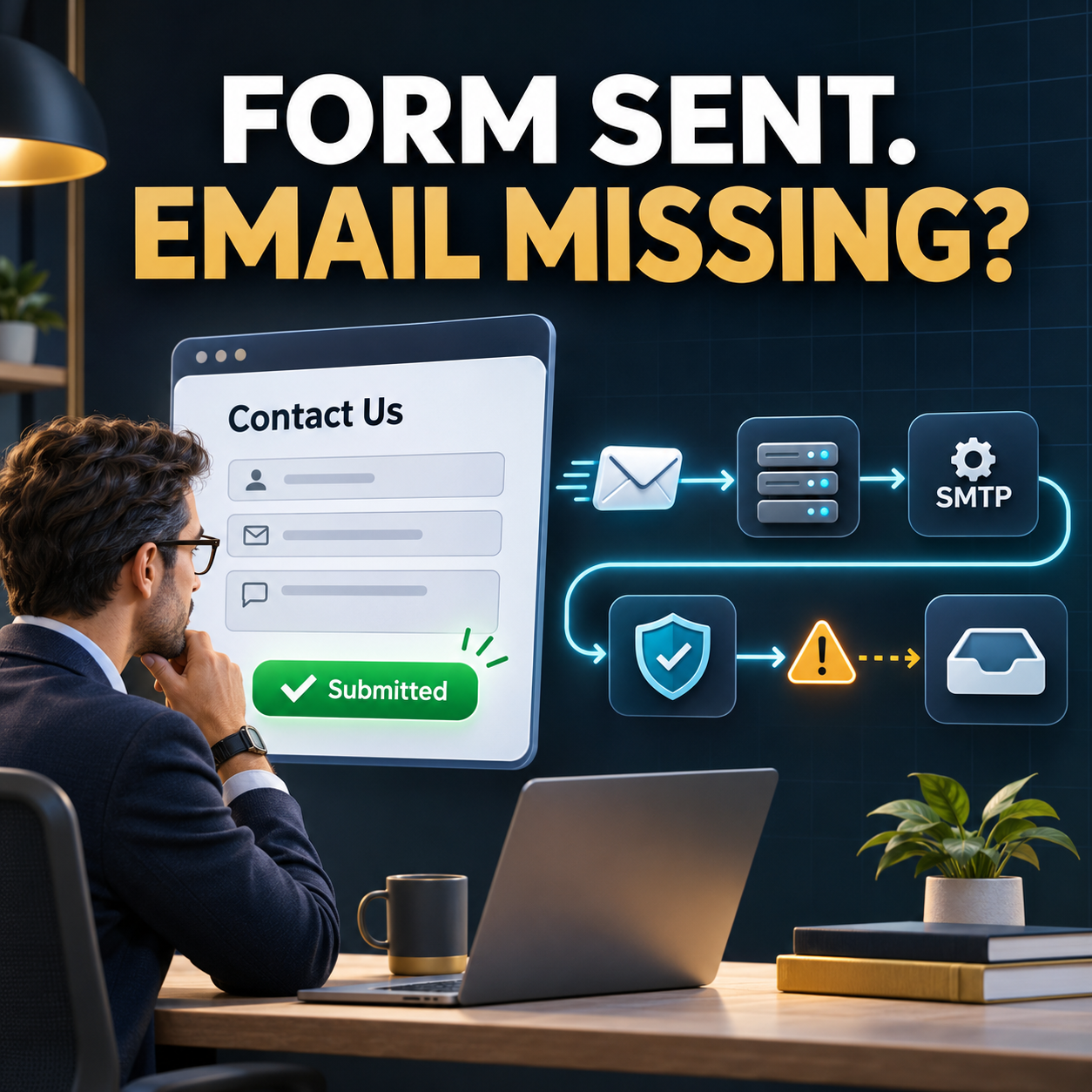
When a website contact form is not sending emails, the fastest solution is not to change every setting at once. First determine where the submission stopped. A form has several separate stages: the visitor submits it, the website validates and stores it, a notification is created, a mail service accepts it, the receiving server evaluates it, and the message reaches a usable inbox. A failure at any one of those stages can look like the same symptom: “We never got the email.”
This guide gives small-business owners and website managers a practical troubleshooting order. It complements the OHS Publishing guide to what should happen after a contact-form submission, but focuses on the technical and operational reasons a notification never arrives.
Understand what “the form worked” actually means
A successful form submission and a delivered email are not the same event. Many WordPress form plugins can save an entry even when the notification fails. Likewise, WordPress can hand a message to its mail function without knowing whether the receiving mailbox will accept it.
The official WordPress documentation for wp_mail() makes an important distinction: a successful return value means the request was processed without an immediate error; it does not prove that the recipient received the message. That is why a green confirmation message cannot be treated as delivery proof.
Think of the path as six checkpoints:
- Submission: The browser sends valid form data to the website.
- Storage: The website records the entry or sends it to an integration.
- Notification rules: The form decides which notification should run and who should receive it.
- Transport: WordPress or a mail service attempts to send the message.
- Acceptance: The receiving mail server checks authentication, reputation, formatting, and policy.
- Inbox handling: Spam filters, quarantine, rules, forwarding, or user actions determine where the message appears.
The troubleshooting goal is to find the last checkpoint that can be verified. Once that boundary is clear, the list of possible causes becomes much shorter.
Step 1: Submit a controlled test
Do not rely only on a customer saying that a form was completed. Run a controlled test yourself and record the details. Use a real external email address, enter a recognizable name such as “Form Test November 3,” and note the exact time. Test on the live public page in a private browser window so an administrator session, saved cookie, or browser extension does not hide a visitor-facing problem.
Watch what happens after clicking Submit:
- Does the button respond once, or can it be clicked repeatedly?
- Does the form display a clear confirmation?
- Does the page redirect to the expected thank-you page?
- Does an error appear near a required field?
- Does the browser show a never-ending loading state?
- Does the same test behave differently on a phone?
If the form itself fails, email delivery is not yet the problem. Check JavaScript errors, security challenges, required-field rules, plugin conflicts, caching, and server responses. Test changes on a safe copy when possible; OHS explains that workflow in the guide to using a WordPress staging site.
Step 2: Check whether the entry was saved
Open the form plugin’s Entries area and look for the controlled test. If the entry exists, the visitor’s data reached WordPress. That is good news: the problem is probably in notification settings, mail transport, or inbox delivery rather than the visible form.
If no entry exists, confirm that you are viewing the correct form and date range. Then review spam, trash, abandoned-entry features, and any routing integration that may move data elsewhere. Some lightweight form tools do not store entries at all, so verify the plugin’s behavior before assuming the record was deleted.
Saved entries are a valuable safety net, but they should not become a hidden inbox that nobody checks. Assign responsibility for reviewing them, especially after a website update or when lead volume suddenly drops. A business that depends on forms should know how to recover missed inquiries without waiting for a prospect to complain.
Step 3: Review every notification setting
A form can store entries perfectly while sending nothing because the notification is disabled or misconfigured. Open the specific form and inspect each notification, not only the general plugin settings.
Confirm the recipient
Check the To field character by character. Look for a misspelled domain, old employee address, unsupported separator, or smart tag that is returning an empty value. If several people need the message, verify the exact format the plugin expects. Also check whether the business intentionally removed an old recipient but never added the replacement.
Check conditional routing
Notifications can be limited by a dropdown choice, service type, location, payment status, or another field. A condition such as “Send when Department is Sales” will not run if the stored value is “sales,” “Sales Department,” or blank. Review the saved entry beside the condition so you are comparing actual values rather than labels remembered from the editor.
Verify that the notification is enabled
Form plugins often allow multiple notifications: one for the business, one for the visitor, and others for departments or locations. Make sure the business notification is active and that a duplicate test notification is not causing confusion. The current Gravity Forms guide to forms not sending email lists disabled notifications, incorrect addresses, invalid From settings, and unmet routing conditions among the common causes.
Step 4: Use the right From and Reply-To addresses
One of the most common mistakes is placing the visitor’s email address in the From field. It seems convenient because the message appears to come from the person who completed the form. In practice, it can make the website claim to be sending mail for Gmail, Yahoo, Outlook, or another domain it does not control.
A safer pattern is:
- From name: The business or website name.
- From email: A real address on the website’s domain, such as forms@example.com.
- Reply-To: The visitor’s email field.
- To: The monitored business inbox or approved distribution list.
This structure keeps the visible sender aligned with a domain the business can authenticate while still letting staff click Reply and respond to the lead. Gravity Forms likewise recommends using a domain-based address in the From field and checking authentication when notifications are not received.
Step 5: Separate sending from delivery
WordPress uses the wp_mail() wrapper for outgoing messages. On a default setup, delivery may depend on the hosting environment’s mail configuration. WordPress’s mail administration guidance explains that the local environment must be able to hand messages to a working mail system, and that a remote authenticated service may be needed when it cannot.
An SMTP plugin or transactional email service changes the transport layer. Instead of asking the web server to send mail with minimal identity information, WordPress connects to a service using authorized credentials or an API. That can improve reliability and produce useful logs, but configuration still matters.
If a test email fails, record the exact error. Common categories include:
- Authentication rejected because the username, password, token, or account is wrong.
- Connection blocked because the host or firewall will not allow the selected port.
- Encryption mismatch between the plugin and the mail service.
- Sender rejected because the From address is not allowed for that account.
- Rate or account limits reached.
- Mail accepted by the sending service but later bounced or suppressed.
Do not keep changing ports and security settings at random. Compare the website configuration with the provider’s current documentation, then use the plugin’s test tool and delivery log. Gravity Forms’ official notification troubleshooting documentation also distinguishes connection, authentication, sender, and content rejection errors.
Step 6: Check SPF, DKIM, and DMARC alignment
Email authentication helps receiving systems evaluate whether a message is authorized. These records do different jobs:
- SPF identifies systems allowed to send for a domain.
- DKIM adds a verifiable signature to the message.
- DMARC tells receiving systems how to handle failures and provides reporting options; it also depends on alignment with the visible From domain.
The exact DNS records come from the service sending the website mail. Do not copy a generic record from another website, and do not create multiple separate SPF records for one hostname. If the domain uses more than one legitimate sender—such as Microsoft 365 for staff email and a transactional service for website notifications—the authentication plan must account for both.
Google’s current email sender guidelines require authentication for mail sent to Gmail accounts and set additional requirements for high-volume senders. A small contact form is not a bulk newsletter, but authenticated, aligned mail is still a stronger foundation than an unauthenticated server message.
Step 7: Inspect the receiving mailbox
If the sending service reports success, move to the receiving side. Search by the test subject, visitor address, sender address, and exact time. Check spam, junk, quarantine, deleted items, focused or secondary inbox tabs, and any security portal managed outside the mailbox.
Then review:
- Inbox rules that move or delete form messages.
- Forwarding from an old address to a new one.
- Shared-mailbox permissions and group membership.
- Blocked senders or safe-sender policies.
- Mailbox storage limits.
- Provider suppression lists after a prior hard bounce.
- Security filtering that strips or quarantines messages with links or attachments.
Test a second recipient on a different email provider. If one mailbox receives the message and another does not, the website probably created and sent the notification. The remaining work is more likely related to recipient policy, filtering, or reputation.
Step 8: Build a form system that can be audited
A dependable form setup should provide more evidence than “we think it sent.” For important lead forms, keep a short operational trail:
- Store entries in WordPress or a connected CRM when appropriate.
- Use a delivery method with logs or searchable activity.
- Send notifications to a monitored role-based inbox, not only one employee.
- Use a clear subject line that identifies the website and form.
- Include the entry ID or timestamp when the form plugin supports it.
- Keep a backup recipient only when the business can monitor and secure it.
- Document who owns the form, mail service, DNS, and receiving mailbox.
Logs should be handled thoughtfully because form submissions may contain personal information. Avoid collecting sensitive data that is not needed, limit access, and set a reasonable retention policy. The form should collect enough information to route and answer the inquiry without becoming a hidden store of unnecessary data.
Step 9: Test the entire business response path
Technical delivery is only part of the job. A message can reach the inbox and still produce no response because nobody owns it, the notification is hard to understand, or the lead is buried among automated alerts.
Confirm that the notification includes the visitor’s name, contact details, selected service, message, and the page or form that generated the inquiry. Make the subject useful at a glance. Decide who responds, how quickly, what happens outside business hours, and how the team records the outcome.
If the site receives traffic but inquiries remain weak, review the broader path from landing page to form. The OHS article about website traffic that does not become leads can help separate a form-delivery problem from a conversion problem.
A practical contact-form recovery checklist
Work through the checklist in order so each test narrows the cause:
- Submit a named, timestamped test from the live public page.
- Confirm the visitor sees the expected confirmation.
- Check whether the entry appears in WordPress or the connected system.
- Verify the business notification is enabled.
- Check the recipient address and every routing condition.
- Use a domain-based From address and the visitor address as Reply-To.
- Run the mail service’s test and review the exact log or error.
- Confirm SPF, DKIM, and DMARC are appropriate for the actual sending service.
- Search spam, quarantine, rules, forwarding, and shared mailboxes.
- Test a second recipient on another provider.
- Reply to the test and confirm the response path works.
- Schedule the next recurring test.
After plugin, theme, form, hosting, DNS, or email changes, repeat the full test. A reliable website maintenance process should include more than installing updates; it should verify that the website’s business-critical actions still work.
Frequently asked questions
Why does a contact form say the message was sent when no email arrives?
The success message usually confirms that the website accepted the submission, not that a mailbox received the notification. The form may save the entry successfully while the notification is disabled, misaddressed, rejected by the sending service, filtered as spam, or blocked later in delivery.
Should a contact form use the visitor’s email address in the From field?
Usually no. Use an authenticated address on the website’s own domain as the From address, then place the visitor’s address in Reply-To. That keeps the visible sender aligned with the domain authorized to send while still letting the business reply directly to the lead.
Will SMTP fix every WordPress contact-form email problem?
SMTP or another authenticated delivery service can solve many transport and authentication problems, but it cannot correct a disabled notification, wrong recipient, failed conditional rule, typo, mailbox rule, full inbox, or broken form. Confirm the form and notification settings before treating SMTP as the only fix.
How often should a business test its website contact form?
Test every important form after launch, after plugin or hosting changes, after notification or DNS changes, and on a recurring schedule. A monthly test is a practical baseline for many small businesses, while high-value or high-volume lead forms may justify more frequent monitoring.
Protect the leads your website already earns
A broken contact-form notification can quietly waste the traffic, advertising, referrals, and trust that brought a visitor to the website. The right response is a calm, evidence-based check of the full path: submission, storage, notification logic, mail transport, authentication, receiving policy, and staff follow-up.
OHS Publishing builds and supports practical WordPress websites for small businesses in the Kansas City area. If your form is unreliable, your site needs ongoing support, or the entire lead path needs to be rebuilt, explore OHS Publishing’s WordPress web design approach, review Kansas City web design services, or request a focused website review.